Trash bin
Files and folders deleted from secure storage are moved to the recycle bin. You can restore items from the recycle bin to their original location or permanently delete them. Items deleted from regular storage are permanently deleted immediately without going through the recycle bin, so they do not appear in the recycle bin.
1. Open Trash Bin
Press [Trash] in the left menu.
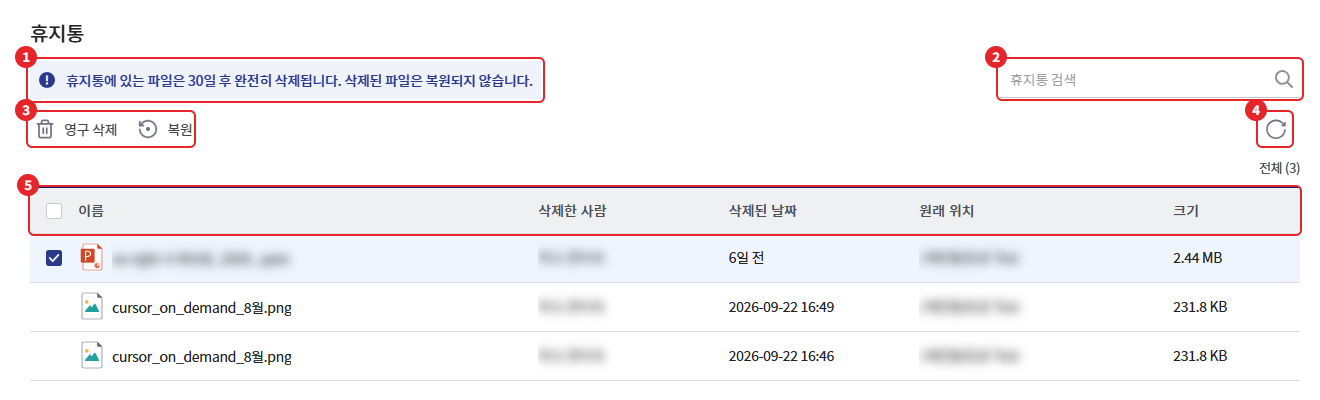
| number | item | Explanation |
|---|---|---|
| 1 | Guide text | "Files in the trash will be permanently deleted after 30 days. Deleted files cannot be restored." |
| 2 | Trash Search | Filtering List by Name |
| 3 | Action Button | No selection: [Empty Recycle Bin] / Item selected: [Permanently Delete] · [Restore] |
| 4 | Refresh | Reload list |
| 5 | List | Name, Deleted By, Deletion Date, Original Location, Size. Total count displayed at the top. |
- The recycle bin displays items that you have deleted. Items deleted by other users are not displayed.
- Items deleted in the last 30 days are displayed in order of the most recent deletion date.
- When you delete a folder, it is displayed as 1 folder, and when restored, it comes back along with its sub-items.
2. Restoration
- Select the items to restore. You can select multiple items using checkboxes, Ctrl + click, or Shift + click.
- Click [Restore] or right-click the item and select [Restore].
- The item returns to the path indicated at [original location].
- If the capacity of the personal vault to be restored is insufficient, a message stating "Insufficient storage capacity to restore." will be displayed along with the name of the corresponding storage, and it will not be restored.
- If you restore files that have been moved to the recycle bin due to personal folder automatic deletion, they will be deleted again during the next automatic deletion if they still meet the deletion cycle conditions.
3. Permanent Deletion
- Select the item to delete.
- Click [Permanently Delete] or right-click the item and select [Permanently Delete].
- Press [Permanent Delete] in the confirmation window.
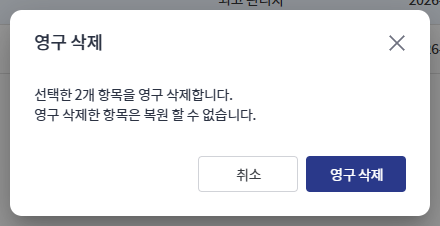
The confirmation dialog will display "Permanently delete the selected N items." (the item name when there is 1) and "Permanently deleted items cannot be restored."
4. Emptying the Trash
- Press [Empty Trash] without selecting any items.
- Press [Clear] in the confirmation window.
- All items in the trash will be permanently deleted and cannot be restored.
- During deletion, a window saying "Deleting item. Please wait a moment." will be displayed. Do not close the screen until it is completed.
5. Reference
- Items that have been in the trash for 30 days will be automatically permanently deleted.
- If the trash is empty, "There are no items in the trash. Items moved to the trash will be displayed here." will be shown.
- If the list cannot be retrieved, "Failed to retrieve the trash list." will be displayed. Please refresh and try again.